


Key Takeaways
- Which CoinPoker version to choose for your device;
- How to install on Android, iOS, Windows and Mac;
- What device specs you’ll need before downloading;
- What opens up in the lobby – tables, tournaments and rewards;
- How the app keeps sessions fair and secure.
Choose the Right CoinPoker Version Before Starting Your First Session
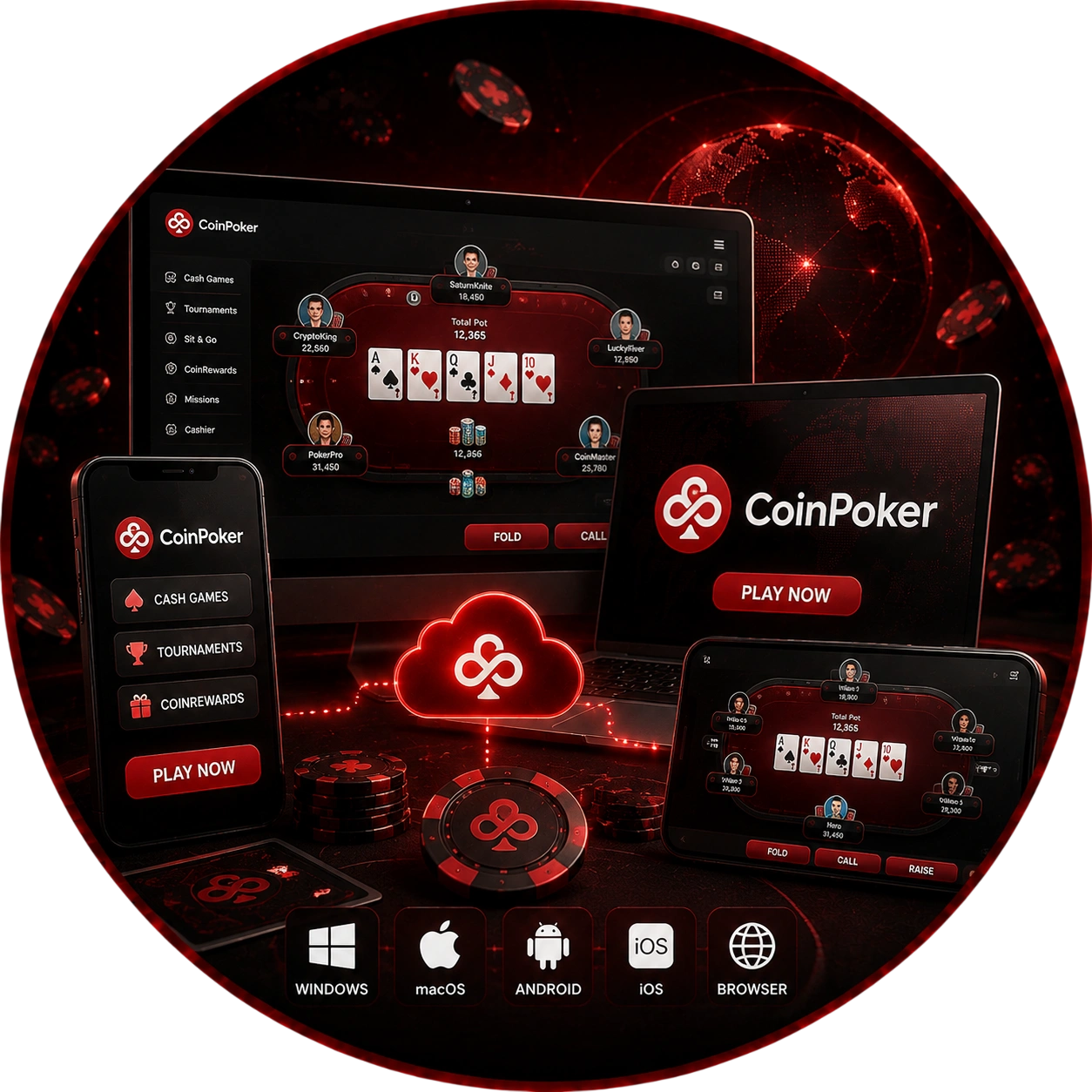
Before installing, make sure the CoinPoker download option for Android is compatible with the device you plan to use. In the official download section, versions are organized by operating system: Windows, Android, and iOS. macOS users can choose between builds for Apple Silicon and Intel. It’s important to consider this difference in processors before running the desktop installer. Use the latest installer designed for your operating system.
Windows, Two macOS Builds, Android and iOS Options
Android and iOS follow their own mobile-specific installation routes, separate from the desktop packages. It’s worth rechecking your platform choice after replacing or upgrading a device, since an outdated installer won’t match new hardware.
Android Poker Built for Full Sessions Away from the Desktop
For mobile players, downloading CoinPoker unlocks a full Android poker client – cash games, tournaments, cashier functions and table controls all run on phones and tablets. Touch controls keep core betting actions practical on smaller screens. Sessions can use Wi-Fi or 4G and 5G mobile data. A stable connection remains important during live hands.
Keep the Same Tournament Running When You Change Devices
A tournament started on a computer can continue through Android or the mobile browser. You use the same account rather than creating another profile. The running event remains associated with that login across supported devices. This makes a computer-to-phone switch practical during a longer session. If a browser disconnects, the lobby can reconnect you to the tournament when the seat remains active.
Desktop Poker Setup for Longer Sessions on Windows and Mac
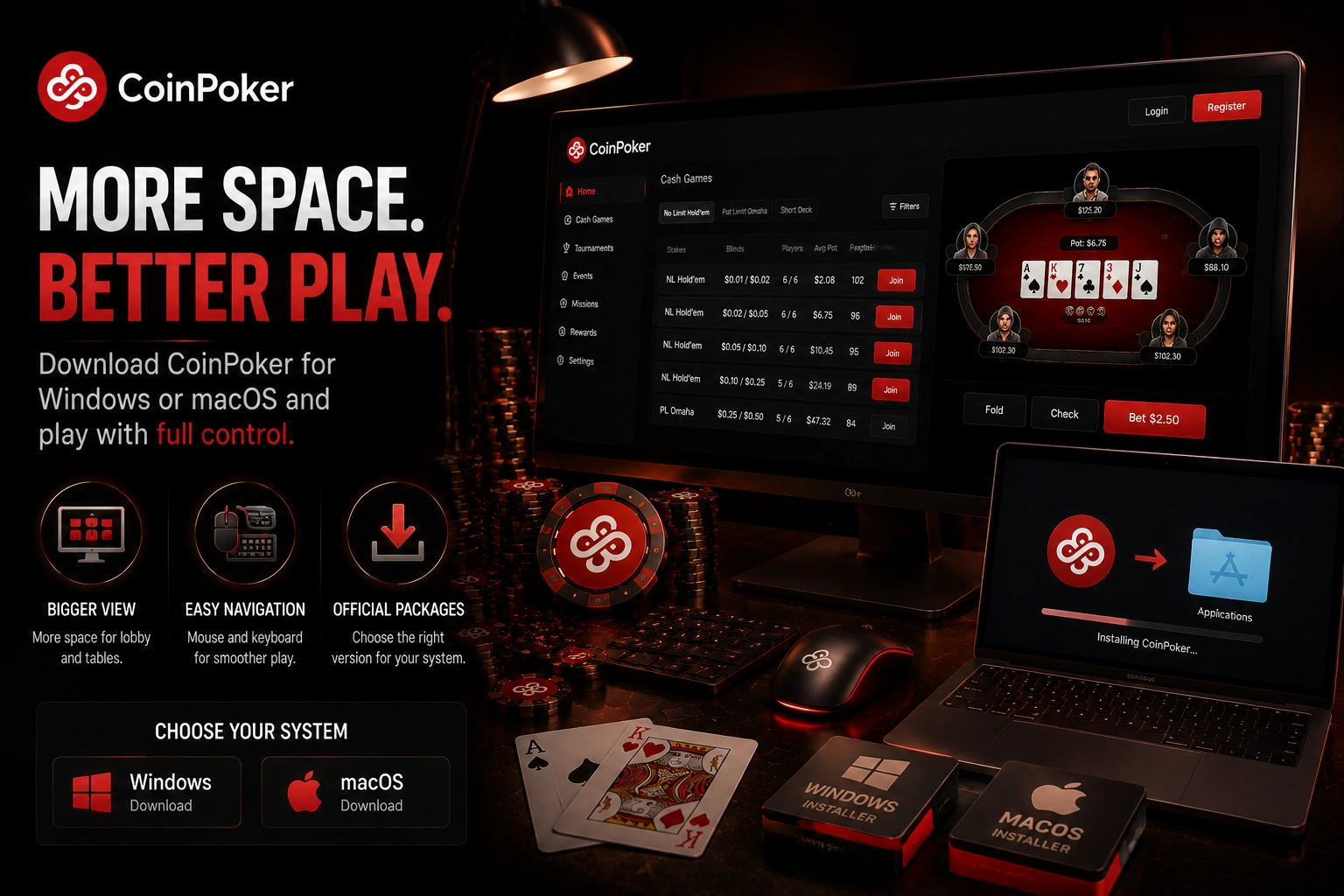
For longer sessions, you can download CoinPoker for Windows or macOS. Playing on a desktop computer provides more screen space for the lobby and active tables. Using a mouse and keyboard can also make it easier to navigate the tables. Different installation packages are available for Windows and Mac. Be sure to select the correct version before opening any installation file.
Windows Installation from Browser to Automatic Client Launch
On Windows, setup moves from browser download to automatic client launch. Keep the installer in your normal Downloads folder until setup finishes. Windows may ask for permission before the package runs. Complete the following sequence in order. The application should open automatically after installation.
- Choose the Windows version: start the official installer download.
- Open the downloaded file: launch the package from the browser or Downloads folder.
- Approve installation: allow the package to run when Windows requests permission.
- Finish setup: complete the installer and let the client open automatically.
The opening screen then provides registration and sign-in options. Existing players can use the credentials already linked to their account.
macOS Security Approval and the Correct Processor Build
On Mac, first choose the Apple Silicon or Intel package for your hardware. The downloaded setup file is named CoinPokerSetup.dmg. Open it and start installation from the package window. If macOS blocks the package, open System Settings, then Privacy & Security, and select Open Anyway. Administrator approval may be required before setup continues.
iPhone and iPad Access Without Being Limited to One Installation Method
On iPhone and iPad, downloading the CoinPoker app is one way to access the poker lobby. The installed iOS client supports access to your account and real-money tables. You can also use the full browser version without installing any local software. This option is supported by Safari, Chrome, and Firefox. The choice depends on your preference: the installed app or a browser session.
iOS App, Browser Play and a Home-Screen Shortcut
For users planning to download the CoinPoker app for iOS, the option to play via a browser will remain available in addition to the installed app. Open the official web player in Safari, Chrome, or Firefox and log in. In Safari, you can create a shortcut on the home screen. Open the “Share” menu, select “Add to Home Screen,” and then confirm the creation of the shortcut. After that, tapping the icon will open the web version directly.
Check Device Performance and Storage Before Running the Software
Before setup, check the operating system, memory and free storage. Recommended desktop guidance starts at Windows 10 or macOS 10, with 8 GB RAM and 20 GB available. Android guidance starts at Android 10, 4 GB RAM and 500 MB free. iOS guidance starts at iOS 15, 2 GB RAM and 500 MB free. Leaving additional storage available also gives the client room for updates.
From First Launch to a Verified Poker Account in a Few Steps
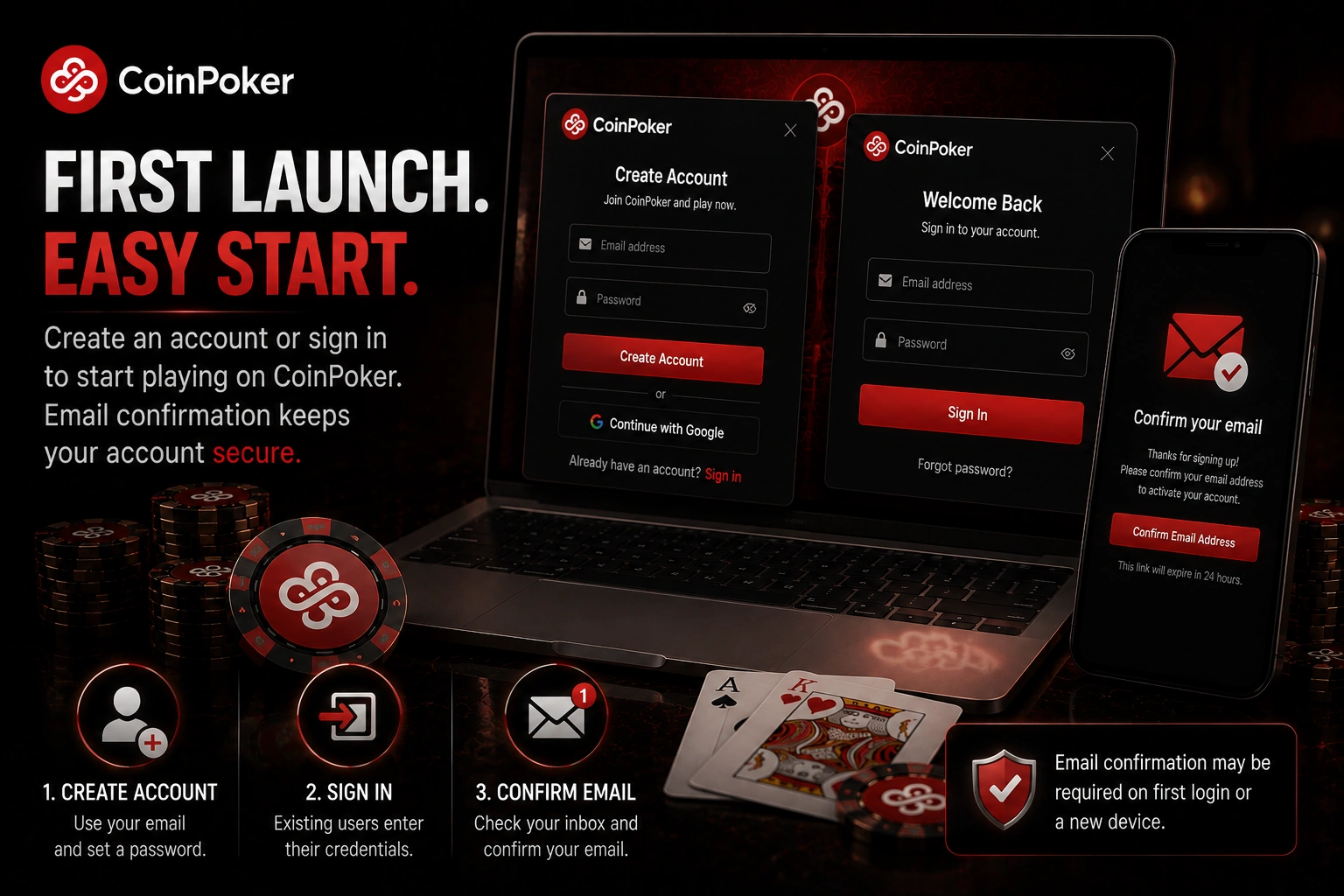
After first launch, new users create an account with an email address and password. Existing users can sign in to CoinPoker with the credentials already linked to their account. Email confirmation can appear on the first login or when using a new device. The verification message contains a six-digit OTP code. Entering it completes the email check inside the client.
Full Poker Lobby with Several Games Running on One Screen
The application opens a full poker lobby with cash games, tournaments and freerolls. Filters help separate formats before you take a seat. Tournament entries stay visible from the same account area used for cash play. Freerolls provide real-money prizes without a standard buy-in. Specialist formats sit beside the main Hold’em and Omaha sections.
Five-Table Play, Hold’em, Omaha Variants and Tournament Action
The mobile lobby supports up to five tables at the same time. Texas Hold’em sits alongside PLO4, PLO5 and PLO6. Short Deck adds a reduced-deck cash format. Bomb Pot changes the opening structure by moving players into a larger starting pot. All-In or Fold reduces the main decision to committing the stack or folding.
Cashier and Poker Rewards Available from the Mobile Interface
After downloading the CoinPoker app, you can deposit funds and make withdrawals through the mobile cashier. Supported cryptocurrencies are available directly, and deposits via bank cards are available in select markets. New players can check the current CoinPoker welcome bonus of 150% up to $2,000 after meeting the first-deposit requirements. CoinRewards distributes over $7 million monthly through CoinRaces, Splash Pots, Bankroll Boosts, and missions. Rewards are tracked in the same account system used for playing poker.
Safe App Sessions, Fair Card Shuffling and Technical Recovery
CoinPoker protects poker sessions with a certified random-number process and ongoing integrity monitoring. The shuffle uses the Fisher-Yates method, while controls target bots, collusion and RTA. Players can also use responsible gaming tools to manage access and take breaks from play when needed. Technical faults can often be addressed by restarting, checking the connection or installing the current client. If trouble continues, support can request diagnostic material tied to the affected session. Screenshots or video can also document a repeatable fault.
| Support item | What it helps identify |
| update log | incomplete client updates |
| numbered log files | application events near the fault |
| device and operating system details | compatibility problems |
| screenshot or video | visible loading, table or crash behaviour |
Compressing logs keeps the support package easier to send. A report tied to the affected device gives the technical team clearer context.